
FluxPay Developer Docs
FluxPay lets you accept online payments with one API. You create a payment, the customer pays, and we tell your server the result with a webhook.
Hosted payment page
Send the customer to a payment link. You never handle card data.
Direct card charges
Send card data from your own form. Needs PCI DSS compliance.
Automatic retries
If a card is declined, we can try another route for you.
REST API and SDK
Plain HTTP with JSON, plus a small JavaScript SDK.
Quick Start
- 1Get a test API key (
sk_test_...). See API Keys. - 2Create a payment on your server with
POST /api/v1/payments. - 3Redirect the customer to the
paymentUrlin the response. - 4Wait for the
payment.successorpayment.failedwebhook, then fulfil the order.
curl -X POST https://fluxpay.online/api/v1/payments \
  -H "Authorization: Bearer sk_test_your_key" \
  -H "Content-Type: application/json" \
  -d '{
    "amount": 99.99,
    "currency": "USD",
    "description": "Order #1234",
    "customer": {
      "email": "customer@example.com",
      "firstName": "John",
      "lastName": "Doe",
      "phone": "+12125551234",
      "ip": "203.0.113.42",
      "billing": {
        "address": "123 Main Street",
        "city": "New York",
        "state": "NY",
        "country": "US",
        "postalCode": "10001"
      }
    },
    "metadata": { "orderId": "ORD-1234" },
    "successUrl": "https://yoursite.com/payment/success",
    "failureUrl": "https://yoursite.com/payment/failure"
  }'
Choose an Integration
There are two ways to take a card payment. Which one fits depends on your account setup.
| Hosted payment link | Direct card charge | |
|---|---|---|
| Endpoint | POST /api/v1/payments | POST /api/v1/payments/charge |
| Who collects the card | The payment page | Your own form |
| PCI DSS | Smaller scope | Full compliance required |
| Works for every account | Yes | Only when checkoutMode is DIRECT |
GET /api/v1/config?country=XX first:checkoutMode: "DIRECT": you may collect the card and use the direct card charge.checkoutMode: "HOSTED": do not collect the card. Create a payment link and redirect the customer.
API Keys
Send your key in the Authorization header on every request: Authorization: Bearer sk_live_...
| Key | Mode | What happens |
|---|---|---|
| sk_test_... | Test | No real money moves. See Test Mode below. |
| sk_live_... | Live | Real payments. Your account must be fully onboarded. |
Get a key
- 1API access is switched on by the FluxPay team. Ask your account manager if you do not see it.
- 2Sign in to your dashboard and pick Test or Live mode with the switch in the header.
- 3Go to Settings > API Keys and click Generate API Key. Use Rotate later to replace it.
- Use keys on your server only. Never put them in browser code, mobile apps or public repos.
- Store them in environment variables, for example
FLUXPAY_API_KEY=sk_live_... - Rotate a key right away if it leaks.
Test Mode
With a sk_test_ key no real money moves, and test payments do not count as revenue.
| Endpoint | What happens in test mode |
|---|---|
| POST /api/v1/payments | The payment is marked COMPLETED straight away (status 201, testMode: true) and a payment.success webhook is sent. No card form is shown. |
| POST /api/v1/payments/charge | The last 4 digits of the card number decide the result. See the table below. |
Test cards (direct card charge)
Use any future expiry date and any 3-digit CVV.
| Card number ends in | Example | Result |
|---|---|---|
| 1111, 1234, 9999 | 4111 1111 1111 1111 | Declined |
| 2222, 2233, 2244 | 4111 1111 1111 2222 | 3DS check, then you choose the outcome |
| 3333, 3344, 3355 | 4111 1111 1111 3333 | Stays PENDING |
| Anything else | 4242 4242 4242 4242 | Completed |
Testing 3DS
- 1Charge a card ending in
2222. - 2The response has
action: "redirect"and aredirectUrl. - 3Open the
redirectUrl. It shows a 3DS simulator. - 4Click Authenticate (Success) or Cancel (Fail).
- 5The customer goes back to your
returnUrland a webhook is sent with the result.
JavaScript SDK
The SDK is a thin wrapper around the REST API. Download the file that fits your project. You can skip the SDK and call the API directly.
| File | Use it for |
|---|---|
| /sdk/v1/fluxpay.cjs.js | Node.js with require() |
| /sdk/v1/fluxpay.esm.mjs | Node.js with import |
| /sdk/v1/fluxpay.min.js | Script tag (window.FluxPay) |
// curl -o fluxpay.cjs.js https://fluxpay.online/sdk/v1/fluxpay.cjs.js
const { FluxPayClient } = require('./fluxpay.cjs.js');

const fluxpay = new FluxPayClient({
  apiKey: process.env.FLUXPAY_API_KEY, // sk_test_... or sk_live_...
});
Script tag. The integrity value proves the file was not changed. Get current values from GET https://fluxpay.online/api/v1/sdk/integrity.
<script src="https://fluxpay.online/sdk/v1/fluxpay.min.js"
        integrity="sha384-..."
        crossorigin="anonymous"></script>
Using the SDK from a Website
paymentUrl to the browser.app.post('/api/create-payment', async (req, res) => {
const { payment } = await fluxpay.createPayment({
amount: req.body.amount,
currency: 'USD',
customer: req.body.customer,
description: req.body.description,
});
res.json({ paymentUrl: payment.paymentUrl });
});<button id="pay-btn">Pay $99.99</button>
<script>
document.getElementById('pay-btn').addEventListener('click', async () => {
const res = await fetch('/api/create-payment', {
method: 'POST',
headers: { 'Content-Type': 'application/json' },
body: JSON.stringify({
amount: 99.99,
customer: { email: 'customer@example.com' },
description: 'Order #1234',
}),
});
const { paymentUrl } = await res.json();
window.location.href = paymentUrl;
});
</script>SDK Methods
| Method | Calls |
|---|---|
| createPayment(body) | POST /api/v1/payments |
| chargePayment(body) | POST /api/v1/payments/charge |
| getPayment(id) | GET /api/v1/payments?id=... |
const { FluxPayClient, FluxPayError } = require('./fluxpay.cjs.js');
const fluxpay = new FluxPayClient({ apiKey: process.env.FLUXPAY_API_KEY });

try {
  const { payment } = await fluxpay.createPayment({
    amount: 49.0,
    currency: 'EUR',
    customer: { email: 'customer@example.com', firstName: 'Jane', lastName: 'Smith' },
    successUrl: 'https://yoursite.com/payment/success',
    failureUrl: 'https://yoursite.com/payment/failure',
  });
  console.log(payment.paymentUrl);

  const { payment: latest } = await fluxpay.getPayment(payment.id);
  console.log(latest.status);
} catch (err) {
  if (err instanceof FluxPayError) console.error(err.statusCode, err.message);
}Create a Payment
POST /api/v1/payments creates a payment and returns a paymentUrl. Send the customer to that URL.
403 { "error": "merchant_not_active" } while your account is still being onboarded or is suspended. Test mode always works.Parameters
amountnumberrequired99.99. Must be more than 0. Currencies without decimals (JPY, KRW and others) must be whole numbers.customer.emailstringrequiredcurrencystringUSD.customer.firstName / lastNamestringcustomer.phonestringcustomer.ipstringcustomer.billingobjectaddress, city, state, postalCode, country (2 letters, for example DE). Send country whenever you can: it decides which routes can take the payment. Without it we use customer.country, then your business country.descriptionstringmetadataobjectsuccessUrl / failureUrl / returnUrlstringwebhookUrlstringlanguagestringen (default) or fr.autoRedirectbooleantrue skips our payment page when your account uses a hosted payment page. Needs customer.firstName, lastName, email and billing.country. See Skip the payment form.affiliateTagstringthreeDSstringauto (default), always or never. Only if the FluxPay team switched this on for your account. Otherwise any value other than auto returns 403.const { payment } = await fluxpay.createPayment({
amount: 99.99,
currency: 'USD',
customer: {
email: 'customer@example.com',
firstName: 'John',
lastName: 'Doe',
billing: { country: 'US' },
},
description: 'Order #1234',
metadata: { orderId: 'ORD-1234' },
});
// Send payment.paymentUrl to the browser and redirect{
"success": true,
"payment": {
"id": "cm4h1abc123def456",
"status": "PENDING",
"amount": 99.99,
"currency": "USD",
"description": "Order #1234",
"paymentUrl": "https://fluxpay.online/payment/generic/cm4h1abc123def456",
"customer": { "email": "customer@example.com", "firstName": "John", "lastName": "Doe" },
"metadata": { "orderId": "ORD-1234" },
"createdAt": "2026-10-15T10:30:00.000Z"
}
}What happens next
- 1The customer opens the
paymentUrland confirms their details. - 2Depending on your account, the customer either enters the card on our page, or is sent on to a partner payment page and enters it there. Either way they enter it once.
- 3We send the payment to a route that supports the customer's country, currency and card. If it is declined, we may try another route.
- 4You get a webhook with the result, and the customer goes to your success or failure URL.
Skip the Payment Form (autoRedirect)
If you already have the customer's name, email and country, send autoRedirect: true. On accounts that use a hosted payment page, the customer then goes straight to the card page and only types the card.
curl -X POST https://fluxpay.online/api/v1/payments \
  -H "Authorization: Bearer sk_live_your_key" \
  -H "Content-Type: application/json" \
  -d '{
    "amount": 25.00,
    "currency": "USD",
    "autoRedirect": true,
    "customer": {
      "email": "customer@example.com",
      "firstName": "Jane",
      "lastName": "Smith",
      "billing": { "country": "DE" }
    },
    "successUrl": "https://yoursite.com/payment/success",
    "failureUrl": "https://yoursite.com/payment/failure"
  }'
With and without autoRedirect
| Without (default) | With autoRedirect: true | |
|---|---|---|
| Customer opens paymentUrl | Sees our page with your data filled in and clicks Proceed | Sees a short "Redirecting to secure payment..." message |
| Then | Goes to the card page | Goes straight to the card page |
| Link reuse | Reusable | Single-use: one link, one payment |
| Missing name, email or country | Allowed | 400 AUTO_REDIRECT_MISSING_FIELDS, nothing is created |
When our page is still shown
autoRedirect never leaves the customer stuck. Our page shows instead when:
- your account takes cards on our page (checkoutMode DIRECT), so the card form is needed
- you offer more than one payment method, so the customer can choose
- the amount is outside the card limits (the page explains this)
- something fails on the way, so the customer sees the error and can retry
Opening the link again while the card page is still open sends the customer back to that same page. In your browser's network tab that call answers resumed: true. This is expected, not an error, and no second payment is started. In test mode the payment completes when you create it, so the link shows it as paid.
Account Configuration
GET /api/v1/config tells you what your account can process and how card checkout works. Pass the customer's country as ?country=XX. Without it we use your business country.
curl "https://fluxpay.online/api/v1/config?country=DE" \
-H "Authorization: Bearer sk_live_your_key"{
"methods": [
{
"method": "CREDIT_CARD",
"currencies": ["EUR", "USD", "GBP"],
"countries": ["DE", "FR", "ES"],
"fxConversion": false
}
],
"cardBrands": ["VISA", "MASTERCARD", "AMEX", "DISCOVER", "JCB", "DINERS", "UNIONPAY"],
"checkoutMode": "HOSTED",
"checkoutModeCountry": "DE",
"threeDS": {
"controlAllowed": false,
"preference": "auto",
"modes": ["auto", "always", "never"]
}
}| Field | Meaning |
|---|---|
| methods[].currencies | Currencies you can charge. ["*"] means any currency. |
| methods[].countries | Customer countries covered. ["*"] means all. |
| methods[].fxConversion | true means you can charge in any currency and it is converted for you. |
| cardBrands | Fixed list of card brands the API accepts. |
| checkoutMode | DIRECT: you may collect cards yourself. HOSTED: redirect the customer instead. |
| threeDS.controlAllowed | true if you may send the threeDS parameter. |
Payment Status
GET /api/v1/payments?id=PAYMENT_ID returns the current state of a payment. Use it to double-check a webhook or a redirect.
| Status | Meaning |
|---|---|
| PENDING | Waiting for the customer or the bank. |
| COMPLETED or SUCCESSFUL | Paid. Treat both as success. |
| FAILED | Declined or abandoned. See failureReason. |
| REFUNDED / PARTIALLY_REFUNDED | Money was returned to the customer. |
Direct Card Charges (S2S)
Collect the card on your own form and send it from your server to POST /api/v1/payments/charge.
- You handle raw card data, so you must be PCI DSS compliant.
- Card acquiring must be switched on for your account. If not, you get
403 "Card acquiring is not enabled for this merchant". - Check that
GET /api/v1/configreturnscheckoutMode: "DIRECT". If it returns HOSTED, the charge sends back a redirect to a payment page where the customer must enter the card again. Use the hosted payment link instead.
Charge a card
const { payment } = await fluxpay.chargePayment({
  amount: 99.99,
  currency: 'USD',
  card: {
    number: '4242424242424242',
    holderName: 'JOHN DOE',
    expiryMonth: '12',
    expiryYear: '28',
    cvv: '123',
  },
  customer: {
    email: 'john@example.com',
    firstName: 'John',
    lastName: 'Doe',
    ip: '203.0.113.42',
    billing: { country: 'US', city: 'New York', postalCode: '10001' },
  },
  description: 'Order #1234',
  metadata: { orderId: 'ORD-1234' },
  returnUrl: 'https://yoursite.com/payment/return',
});

if (payment.action === 'redirect') {
  // Send the customer to payment.redirectUrl (3DS check or payment page)
} else {
  // Check payment.status: COMPLETED or SUCCESSFUL = paid, FAILED, or PENDING
}curl -X POST https://fluxpay.online/api/v1/payments/charge \
-H "Authorization: Bearer sk_test_your_key" \
-H "Content-Type: application/json" \
-H "Idempotency-Key: order-1234" \
-d '{
"amount": 99.99,
"currency": "USD",
"card": {
"number": "4242424242424242",
"holderName": "JOHN DOE",
"expiryMonth": "12",
"expiryYear": "28",
"cvv": "123"
},
"customer": {
"email": "john@example.com",
"firstName": "John",
"lastName": "Doe",
"phone": "+12125551234",
"ip": "203.0.113.42",
"billing": {
"address": "123 Main St",
"city": "New York",
"state": "NY",
"postalCode": "10001",
"country": "US"
}
},
"description": "Order #1234",
"metadata": { "orderId": "ORD-1234" },
"returnUrl": "https://yoursite.com/payment/return"
}'Parameters
amountnumberrequiredcard.numberstringrequiredcard.holderNamestringrequiredcard.expiryMonthstringrequiredcard.expiryYearstringrequired28. A 4-digit year returns 400.card.cvvstringrequiredcustomer.emailstringrequiredcurrencystringcustomer.firstName / lastName / phonestringcustomer.ipstringcustomer.billingobjectreturnUrlstringdescription / metadata / webhookUrl / affiliateTag / threeDSmixedUnknown fields are rejected with 400 "Invalid request body".
Responses
Read success and payment in the body. Do not rely on the HTTP status code alone.
{
  "success": true,
  "payment": {
    "id": "cm4h1abc123",
    "status": "COMPLETED",
    "amount": 99.99,
    "currency": "USD",
    "customer": { "email": "john@example.com" },
    "metadata": { "orderId": "ORD-1234" },
    "createdAt": "2026-10-15T10:00:00.000Z",
    "processedAt": "2026-10-15T10:00:02.000Z"
  }
}{
"success": true,
"payment": {
"id": "cm4h1abc123",
"status": "PENDING",
"action": "redirect",
"requires3DS": true,
"redirectUrl": "https://...",
"amount": 99.99,
"currency": "USD"
}
}{
"success": false,
"error": "Payment declined",
"payment": {
"id": "cm4h1abc123",
"status": "FAILED",
"failureReason": "Card declined by issuer."
}
}{
"success": false,
"error": "This transaction was blocked by a risk policy.",
"code": "POLICY_BLOCKED",
"action": "BLOCK",
"supportReference": "POL-9F3K2A1B7C",
"payment": {
"id": "cm4h1abc123",
"status": "FAILED",
"failureReason": "This transaction was blocked by a risk policy."
}
}You can show supportReference to the customer. Our support team uses it to find the case. If no route can take the card at all, the response has code: "NO_ROUTE_AVAILABLE".
Redirects and 3DS
When the response has action: "redirect", send the customer to redirectUrl. This can be a 3DS check from the card's bank, or a payment page where the customer enters the card. requires3DS is also true in both cases, for older integrations.
- 1Save
payment.idwith your order. - 2Redirect the customer to
redirectUrl. - 3The customer finishes and comes back to your
returnUrl. - 4Get the final status from the webhook, or from
GET /api/v1/payments?id=....
Safe retries (Idempotency-Key)
Send an Idempotency-Key header, for example your order ID. If your request times out, you can send it again without charging twice.
| First request ended as | Same key again |
|---|---|
| Declined | Allowed. The charge is tried again. |
| Paid, pending or redirect | Rejected with 409 IDEMPOTENCY_REPLAY. No second charge. |
Errors
| HTTP | When |
|---|---|
| 400 | Invalid body, unknown field, 4-digit expiry year, or decimals on a currency without decimals. |
| 401 | Missing or invalid API key. |
| 403 | Card acquiring not enabled, threeDS not enabled for your account, or affiliate tracking not enabled. |
| 409 | Idempotency key already used, or the affiliate tag is inactive. |
| 422 | No route supports the threeDS mode you asked for (NO_PROVIDER_FOR_3DS_MODE). |
Complete example
const { FluxPayClient } = require('./fluxpay.cjs.js');
const fluxpay = new FluxPayClient({ apiKey: process.env.FLUXPAY_API_KEY });

async function checkout(order, card) {
  // 1. Only collect cards when the account allows it
  const config = await fetch(
    'https://fluxpay.online/api/v1/config?country=' + order.country,
    { headers: { Authorization: 'Bearer ' + process.env.FLUXPAY_API_KEY } }
  ).then(r => r.json());

  if (config.checkoutMode !== 'DIRECT') {
    const { payment } = await fluxpay.createPayment({
      amount: order.total,
      currency: order.currency,
      customer: { email: order.email, billing: { country: order.country } },
      metadata: { orderId: order.id },
    });
    return { redirect: payment.paymentUrl };
  }

  // 2. Charge the card
  const result = await fluxpay.chargePayment({
    amount: order.total,
    currency: order.currency,
    card,
    customer: { email: order.email, billing: { country: order.country } },
    metadata: { orderId: order.id },
    returnUrl: 'https://yoursite.com/orders/' + order.id,
  });

  if (result.payment.action === 'redirect') {
    return { redirect: result.payment.redirectUrl, paymentId: result.payment.id };
  }
  return { paid: result.success, paymentId: result.payment.id };
}
Refunds
POST /api/v1/refunds refunds all or part of a payment.
curl -X POST https://fluxpay.online/api/v1/refunds \
  -H "Authorization: Bearer sk_live_your_key" \
  -H "Content-Type: application/json" \
  -d '{
    "transactionId": "cm4h1abc123def456",
    "amount": 25.00,
    "reason": "Customer asked for a partial refund"
}'{
"success": true,
"refund": {
"id": "cm4h1ref789ghi012",
"status": "PENDING",
"amount": 25.00,
"currency": "USD",
"type": "PARTIAL",
"createdAt": "2026-10-15T10:05:00.000Z"
}
}transactionIdstringrequiredamountnumberreasonstringLive refunds start as PENDING and are reviewed by the FluxPay team before money moves. Test refunds finish right away. GET /api/v1/refunds lists your refunds.
Webhooks
We send a POST request to your URL when a payment changes. Use webhooks, not the redirect, to decide that an order is paid.
Set up
- 1In your dashboard, open Webhooks in the sidebar.
- 2Enter your URL and pick the events. Test mode and live mode each have their own URL and secret.
- 3Copy the webhook secret. You need it to check signatures.
You can also send webhookUrl when you create a payment to use a different URL for that payment.
Events
| Event (X-Webhook-Event) | Sent when |
|---|---|
| payment.pending | A payment was created and is waiting. |
| payment.success | The payment is paid. Fulfil the order. |
| payment.failed | The payment failed. |
Request format
POST https://yoursite.com/webhooks/fluxpay

Headers
  Content-Type: application/json
  X-Webhook-Event: payment.success
  X-Webhook-Signature: <HMAC-SHA256 of the raw body, hex>
  X-Transaction-Id: cm4h1abc123def456
  X-Test-Mode: false          (first attempt only)
  X-Retry-Attempt: 2          (retries only)

Body
{
  "paymentId": "cm4h1abc123def456",
  "transactionId": "cm4h1abc123def456",
  "reference": "cm4h1def456ghi789",
  "amount": 99.99,
  "currency": "USD",
  "status": "COMPLETED",
  "customerEmail": "customer@example.com",
  "testMode": false,
  "metadata": { "orderId": "ORD-1234" },
  "timestamp": "2026-10-15T10:35:00.000Z"
}paymentIdis the ID you got when you created the payment.- A
statusofCOMPLETEDorSUCCESSFULboth mean paid. - Failed payments also include
failureReason. Payments blocked by a risk rule also includesupportReference.
Check the signature
X-Webhook-Signature is an HMAC-SHA256 of the raw request body, using your webhook secret, as hex. Reply with any 2xx status within 10 seconds.
const crypto = require('crypto');

// Use the RAW body. Parsing and re-encoding the JSON breaks the signature.
app.post('/webhooks/fluxpay', express.raw({ type: 'application/json' }), (req, res) => {
  const expected = crypto
    .createHmac('sha256', process.env.FLUXPAY_WEBHOOK_SECRET)
    .update(req.body)
    .digest('hex');
  const received = req.get('X-Webhook-Signature') || '';

  if (received.length !== expected.length ||
      !crypto.timingSafeEqual(Buffer.from(received), Buffer.from(expected))) {
    return res.status(401).end();
  }

  const event = req.get('X-Webhook-Event');
  const payment = JSON.parse(req.body);
  if (event === 'payment.success') {
    // Mark order payment.metadata.orderId as paid
  }
  res.status(200).end();
});X-Retry-Attempt header. Do not depend on retries: if you miss a webhook, check the payment with GET /api/v1/payments?id=.... Handle the same event twice safely.Redirect URLs
Send the customer back to your site after they pay.
| Parameter | Used when |
|---|---|
| successUrl | The payment succeeded. |
| failureUrl | The payment failed. |
| returnUrl | Fallback for both, if the one above is not set. |
We add these query parameters:
| Query parameter | Value |
|---|---|
| status | success or failed |
| transaction_id | Payment ID |
| amount | Amount |
| currency | Currency code |
| reference | Internal payment reference |
Embed in an iframe
You can show the payment page inside an iframe on your own site. Put the paymentUrl in the iframe. It works with autoRedirect too.
<iframe
  src="PAYMENT_URL_FROM_THE_API"
  allow="payment"
  style="width: 100%; height: 760px; border: 0;"
></iframe>

<script>
  // Sent once when the payment is finished
  window.addEventListener('message', (event) => {
    if (event.data?.type !== 'fluxpay:payment') return;
    const { status, paymentId } = event.data; // status: "success" or "failed"
    // Close the iframe or move to your own page here
  });
</script>- Keep
allow="payment". Apple Pay and Google Pay need it. Apple Pay inside an iframe needs Safari 17 or later. - When the payment ends, the iframe also opens your
successUrlorfailureUrlinside the iframe. If you use the message above, you can leave those out. - The message is for your page only. Confirm the payment with the webhook or the status API before you ship.
- A few banks do not allow their 3DS check inside an iframe. If a customer gets stuck there, open the same
paymentUrlas a full page.
Payment Methods
What your customers see depends on what is switched on for your account. Use GET /api/v1/config to see the methods, currencies and countries you can take.
| Method | How the customer pays |
|---|---|
| Cards (Visa, Mastercard and others) | On the payment page, or on your own form with direct charges. |
| Apple Pay and Google Pay | On the payment page, where available. |
| Bank payments (open banking) | The customer picks their bank and approves in their banking app. |
| Local payment methods | Some countries have local methods. The customer finishes on a partner payment page. |
Affiliate Tracking
Tag payments with your own affiliates or partners, then see totals per affiliate. New tags are created automatically the first time you use them.
403 "Affiliate tracking is not enabled for this merchant".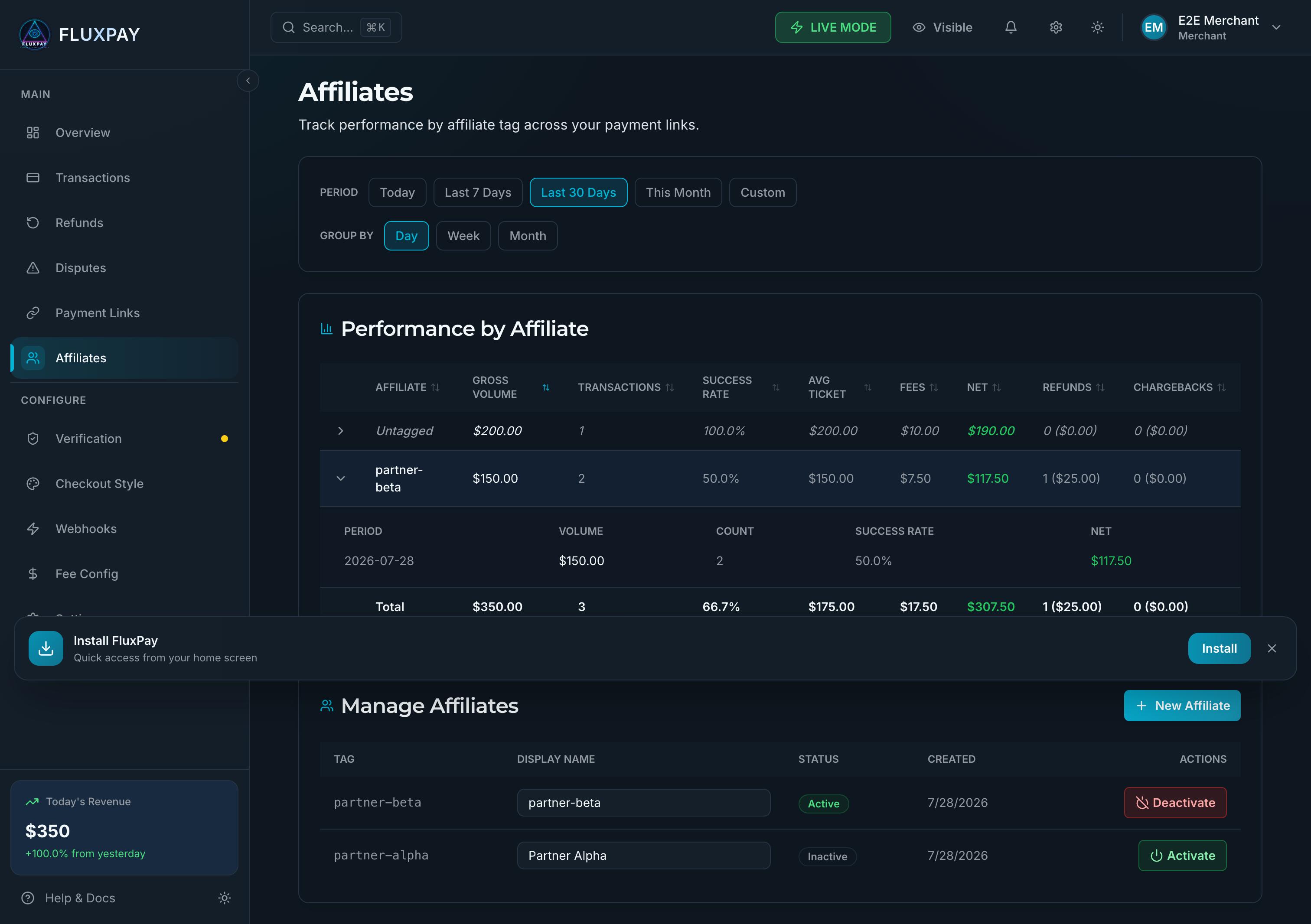
1. Tag a payment
Add affiliateTag to POST /api/v1/payments, POST /api/v1/payments/charge or a payment link. Tags are made lowercase, spaces become hyphens, and they are cut to 64 characters. So "Partner A" and "partner-a" are the same affiliate.
const { payment } = await fluxpay.createPayment({
  amount: 149.99,
  currency: 'USD',
  customer: { email: 'customer@example.com' },
  affiliateTag: 'partner-a',
});curl -X POST https://fluxpay.online/api/v1/payments \
-H "Authorization: Bearer sk_live_your_key" \
-H "Content-Type: application/json" \
-d '{
"amount": 149.99,
"currency": "USD",
"customer": { "email": "customer@example.com" },
"affiliateTag": "partner-a"
}'2. Get totals
GET /api/v1/affiliates/breakdown returns the same numbers as the dashboard. from and to default to the last 30 days (max 366 days). groupBy is day, week or month. Add affiliateId to get one affiliate.
curl "https://fluxpay.online/api/v1/affiliates/breakdown?from=2026-09-01&to=2026-09-30&groupBy=week" \
-H "Authorization: Bearer sk_live_your_key"{
"rows": [
{
"affiliateId": "aff_123",
"tag": "partner-a",
"displayName": "Partner A",
"summary": {
"grossVolume": 150.00,
"transactionCount": 3,
"successfulCount": 1,
"failedCount": 1,
"pendingCount": 1,
"successRate": 0.5,
"averageTicket": 150.00,
"totalFees": 7.50,
"netAmount": 117.50,
"refundCount": 1, "refundVolume": 25.00,
"chargebackCount": 0, "chargebackVolume": 0.00
},
"buckets": [ { "period": "2026-09-01", "grossVolume": 150.00 } ]
}
],
"totals": { "grossVolume": 350.00 }
}netAmount is gross minus fees, refunds and chargebacks. Payments without a tag are grouped in a row with tag: "untagged", when there are any.
3. Manage affiliates
| Request | Does |
|---|---|
| GET /api/v1/affiliates | List affiliates |
| POST /api/v1/affiliates | Create one: { tag, displayName? } |
| PATCH /api/v1/affiliates/{id} | Rename, or set isActive |
| DELETE /api/v1/affiliates/{id} | Deactivate. History stays in reports. |
A deactivated tag cannot be used on new payments (409).
WooCommerce Plugin
Install the plugin to take payments in a WooCommerce store. No coding needed. Customers are sent to the hosted payment page.
| Requirement | Version |
|---|---|
| WordPress | 5.8 or later |
| WooCommerce | 7.0 or later |
| PHP | 7.4 or later |
| HTTPS | Required |
Install
- 1In WordPress go to Plugins > Add New > Upload Plugin, upload the zip, install and activate.
- 2Go to WooCommerce > Settings > Payments > FluxPay.
- 3Paste your Test API Key and Live API Key, and your webhook secret from the FluxPay dashboard.
- 4Tick Enable. Turn off Test Mode when you are ready for real payments.
Settings
| Setting | What it does | Default |
|---|---|---|
| Enable/Disable | Show FluxPay at checkout | Off |
| Title | Name shown at checkout | Credit Card (FluxPay) |
| Description | Text shown at checkout | Pay securely with your credit card. |
| Test Mode | Use the test key and test URL | On |
| Test API Key | Your sk_test_ key | Empty |
| Test Base URL | API address used in test mode | Change it to https://fluxpay.online |
| Live API Key | Your sk_live_ key | Empty |
| Live Base URL | API address used in live mode | https://fluxpay.online |
| Webhook Secret | Used to check webhook signatures | Empty |
| Logging | Write logs to WooCommerce > Status > Logs | Off |
The plugin sends its own webhook URL (yoursite.com/?wc-api=fluxpay) with every payment, so you only need to paste the webhook secret. Unsigned webhooks are rejected.
How a payment works
- 1The customer clicks Place order.
- 2The plugin creates a FluxPay payment and sends the customer to the payment page.
- 3The customer pays and comes back to your order confirmation page.
- 4Our webhook updates the order to Processing, Failed or Refunded.
Troubleshooting
Check the API key and base URL for the current mode, and that your account is active. Turn on Logging and check WooCommerce > Status > Logs.
Check the webhook secret, and that your site is reachable over HTTPS and not blocked by a firewall.
<?php
// Only needed if you build your own integration.
// The FluxPay WooCommerce plugin already does this for you.

function handle_fluxpay_webhook(WP_REST_Request $request) {
    // Use the raw body. Re-encoding parsed JSON will not match the signature.
    $body      = file_get_contents('php://input');
    $signature = $request->get_header('X-Webhook-Signature');
    $event     = $request->get_header('X-Webhook-Event');
    $secret    = get_option('fluxpay_webhook_secret');

    if (!hash_equals(hash_hmac('sha256', $body, $secret), (string) $signature)) {
        return new WP_REST_Response(['error' => 'Invalid signature'], 401);
    }

    $payload = json_decode($body, true);
    $order   = wc_get_order($payload['metadata']['orderId'] ?? 0);

    if ($order && $event === 'payment.success') {
        $order->payment_complete($payload['paymentId']);
    }

    return new WP_REST_Response(['success' => true], 200);
}